VLC Media Player is a popular choice for watching videos and streaming content, but it also offers a handy screen and media recording feature. It's supposed to be simple: hit the red record button, and VLC should start saving whatever you're playing. But if you're here, chances are it didn't. The recording either doesn't start, nothing saves, or the saved file becomes empty.
This issue frustrates many users. It happens on Windows and Mac and can be triggered by wrong settings, permission issues, or VLC bugs. The good news? You don't need to be a tech expert to fix it. This guide walks through clear, step-by-step ways to solve the VLC, not recording, problem.
How to Solve VLC Not Recording?
Check Where VLC Saves Recordings
Before digging deeper, ensure the recordings aren't being saved somewhere unexpected.
- Default location on Windows: C:\Users\[YourName]\Videos
- Default location on macOS: ~/Movies
You can also check or change the folder:
- Open VLC.
- Go to Tools > Preferences (or VLC > Preferences on Mac).
- Click on the Input / Codecs tab.
- Look for the Record directory or filename field.
- Set a new folder path you can easily find and access.
Try recording again and check that folder.
Update VLC Media Player
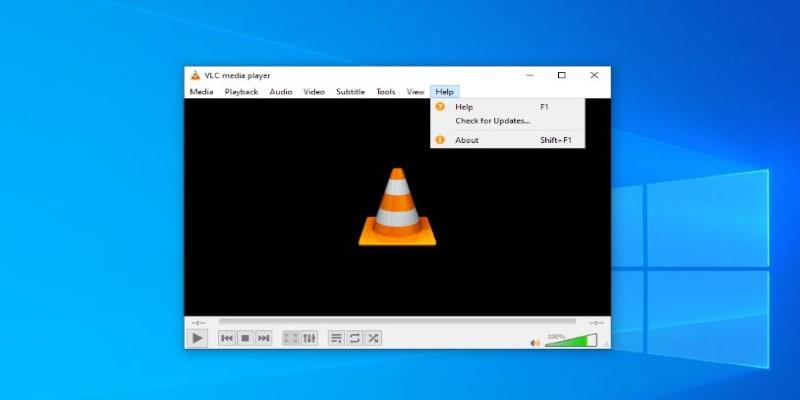
Sometimes, the problem lies with the version of VLC you're using. Bugs in older versions can affect the recording function.
- Open VLC and go to Help > Check for Updates.
- If an update is available, download and install it.
- Restart VLC and test the recording feature.
Run VLC as Administrator (Windows only)
A lack of permissions can stop VLC from writing to the disk.
To run as administrator:
- Close VLC if it’s open.
- Right-click the VLC shortcut.
- Select Run as administrator.
- Try recording again.
If this works, you can make VLC always run as admin:
- Right-click the VLC shortcut.
- Choose Properties > Compatibility tab.
- Check Run this program as an administrator.
Enable the Recording Button in the Interface
Users sometimes think recording is broken when they haven't enabled the recording button.
To show the record button:
- Open VLC.
- Go to View > Advanced Controls.
- You'll now see a small red circle on the interface—the record button.
Play something, then hit the red circle to start and stop recording. Check your save folder for the output file.
Check File Format and Codec Settings
VLC sometimes struggles with certain file types or codecs. For example, you might be trying to record a format it can't handle properly.
Try this:
- Go to Tools > Preferences > Input / Codecs.
- Set Hardware-accelerated decoding to Disable.
- Scroll down to the Record directory or filename and choose a simple location like Desktop.
- Go to the Video tab and make sure the Enable Video checkbox is ticked.
- Under Output, choose Automatic or DirectX (DirectDraw) if on Windows.
Click Save, then restart VLC and try again.
Use the Convert/Save Feature as an Alternative
If the regular record button isn’t working, try this workaround:
- Go to Media > Convert / Save.
- Click Add, and select the file or stream.
- Click Convert / Save at the bottom.
- Under Settings, choose the format (MP4, AVI, etc.).
- Set a Destination file and click Start.
This method uses VLC’s transcoding feature, which works even when the record button fails.
Check Disk Permissions and Space
Ensure VLC has permission to write to the folder you're recording. This can be an issue on Mac, especially with newer privacy rules.
On macOS:
- Go to System Settings > Privacy & Security > Files and Folders.
- Ensure VLC can access Desktop, Documents, or Downloads wherever you save files.
Also, confirm you have enough free space on the drive.
Reinstall VLC (Clean Install)
If none of the above worked, try a clean reinstall:
- Uninstall VLC from your system.
- Delete the preferences folder:
- Windows: C:\Users\[YourName]\AppData\Roaming\vlc
- Mac: ~/Library/Preferences/org.Videolan.vlc
- Download the latest version.
- Reinstall VLC and test recording again.
This will reset all your VLC settings and clear up any corrupted files.
Check VLC Logs for Errors
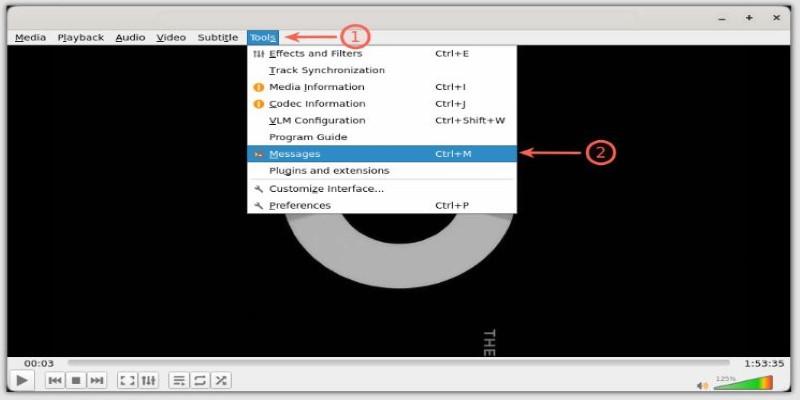
For advanced users, VLC logs can reveal what’s going wrong.
To access logs:
- Go to Tools > Messages.
- Set the Verbosity level to 2.
- Try to record something.
- Watch for any error messages that show up.
These logs can help pinpoint codec errors, write failures, or other internal issues.
Alternative Tools to Record Screen with Audio
OBS Studio (Windows, macOS, Linux)
OBS (Open Broadcaster Software) is a popular free screen recording and streaming tool. It fully controls resolution, frame rate, audio sources, and output formats.
- Records screen, webcam, and system audio
- Customizable layouts and hotkeys
- No watermarks or time limits
- Great for tutorials, gameplay, or long recordings
ShareX (Windows only)
ShareX is lightweight, open-source, and perfect for quick recordings or screenshots.
- Offers region or full-screen recording
- Can record as MP4 or animated GIF
- Built-in annotation, upload, and editing tools
- Works well for software demos or guides
QuickTime Player (macOS only)
Pre-installed on Mac, QuickTime Player includes a built-in screen recording tool.
- Simple interface with quick screen or window capture
- Allows voice-over using a mic
- No extra installations are required
- Best for casual or occasional recording needs
Conclusion
VLC not recording can be frustrating, but most causes are simple to fix—wrong settings, a missing record button, or permission issues. Go through each step calmly and methodically. Start by ensuring the recording is saved somewhere, then move on to updating VLC, tweaking codec settings, and checking permissions. If all else fails, VLC isn't your only option. Plenty of free, reliable tools can handle recording better and with fewer hiccups. Take a little time to try the steps above; chances are VLC will save your media just fine again.