Slideshows are a fantastic way to turn your favorite memories into captivating stories. Whether it’s a vacation recap, a special event, or a professional project, your iPhone makes creating and sharing slideshows effortless. Don’t worry—it’s easier than you think! With built-in tools, you can design a polished, eye-catching slideshow in minutes. This guide will show you how in just five simple steps.
Why Choose Your iPhone for Creating Slideshows?
Your iPhone is more than just a camera. With its powerful suite of built-in tools and intuitive apps like Photos and iMovie, you can seamlessly develop professional-looking slideshows without needing additional software. Here’s why your iPhone is a great choice for this task:
- Ease of use: Apple designs its features with simplicity in mind, meaning anyone can create captivating slideshows quickly.
- Quality visuals: The iPhone's high-resolution camera captures breathtaking images to enhance your slideshows.
- Pre-installed tools: The Photos app and iMovie offer robust features for free, eliminating the need for costly external tools.
Step 1 Organize Your Photos

Your first step to a great slideshow is organizing your photos. Here’s what to do:
- Open the Photos App: Launch the Photos app on your iPhone.
- Create a New Album: Tap on the + button in the Albums section and select “New Album.” Name it something relevant, like “Vacation 2025” or "Company Presentation."
- Select Photos: Browse through your library and select the images (or videos) you’d like to include in your slideshow. Adding them to this album keeps everything organized and easily accessible.
Choose a mix of wide shots, close-ups, and dynamic clips to keep your slideshow engaging. Make sure all your images are either vertical or horizontal for a consistent look.
Step 2 Create the Slideshow
Once your photos are organized, it’s time to put them together into a slideshow.
- Go Back to the Album: Open the album you just created.
- Start Slideshow Creation: Tap the three-dot menu in the top-right corner and select “Slideshow.”
- Preview Your Slideshow: Photos will automatically generate a slideshow with transitions and background music.
This is your sneak peek, but don’t worry. You’ll be able to customize it fully in the next step.
Step 3 Add Creative Customizations
This is where the magic happens! Get ready to make your slideshow uniquely yours.
Change the Theme
Photos provides several slideshow themes, each with its own transition styles and animations. To change the default theme:
- Tap the screen during playback, then hit the "Options" button.
- Explore themes like “Magazine” for a clean, modern look, or “Ken Burns” for dramatic panning effects.
Choose Background Music
Your slideshow isn’t complete without the perfect soundtrack!
- Go to Options, then tap on Music.
- Choose from your personal music library or the pre-installed tracks Apple offers.
Adjust Slide Timing
Want each image to linger longer? Adjusting the timing is easy:
- Tap Options, then tweak the “Duration” for each slide.
Customized to perfection? Save your settings, and your masterpiece is one step closer to being shared with the world.
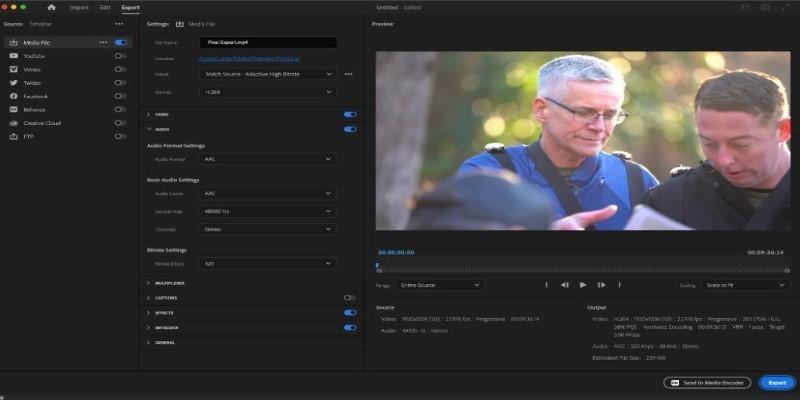
Step 4 Save and Export the Slideshow
Now that your slideshow is looking spectacular, it’s time to save it for future use or export it to share.
- Export Your Slideshow: Tap on the share icon (the box with an upward arrow).
- Choose Resolution: Select a quality for your export, such as 720p or Full HD (1080p) for optimal clarity.
- Save to Your Device: Save the finished slideshow to your camera roll for easy sharing across platforms.
Alternatively, directly upload to apps like Instagram, YouTube, or Dropbox without leaving your Photos app.
Step 5 Share with the World
It’s time to show off your slideshow! The iPhone makes sharing unbelievably simple. Explore these sharing options that fit your audience best:
- Social Media: Post your slideshow directly to Instagram, Facebook, or TikTok. For professional projects, LinkedIn is a great option.
- Messaging Apps: Share your slideshow via iMessage, WhatsApp, or Messenger with friends and family.
- Email: Send the slideshow as an attachment to your coworkers, friends, or family.
- AirDrop: For instant sharing with nearby Apple devices, AirDrop is fast, private, and hassle-free.
Tips for a Show-Stopping Slideshow
- Tell a story: Arrange your photos in chronological order or group them by theme. A cohesive narrative instantly elevates your slideshow.
- Keep it concise: While it might be tempting to add every photo, keep your slideshow short and sweet (around 3-5 minutes).
- Choose music wisely: Ensure your background music fits the tone of your content. Whether you’re going for fun and lighthearted or sleek and professional, the right track can make all the difference.
- Test playback Before sharing: Preview your slideshow on different devices to ensure everything looks seamless.
Troubleshooting Issues

While creating a slideshow using photos and videos can be a fun and creative process, it is not without its challenges. Here are some common issues you may encounter while making a slideshow:
- Audio Sync Problems: Sometimes, the background music or narration may not sync properly with the transitions or duration of the slides. To fix this, adjust the timing of your slides or edit the audio track to align with your presentation.
- Low-Quality Images or Videos: Using low-resolution media can make your slideshow look unprofessional. Ensure that your photos and videos are of high quality and properly scaled for the slideshow format.
- Software Crashes or Compatibility Issues: Slideshow creation software may sometimes crash or fail to export the final product. Save your work frequently and check the compatibility of your files with your chosen software.
- Unbalanced Design: Overloading slides with too much text, images, or effects can make them cluttered and difficult to follow. Aim for a clean, visually appealing layout that allows your content to shine without overwhelming your audience.
Conclusion
Creating slideshows on your iPhone is a breeze when you follow these simple steps. Whether for personal memories or professional use, this tool gives you creative control with minimal effort. Your iPhone’s powerful capabilities ensure your slideshows will always look polished and professional. Why wait? Grab your device, pick your favorite shots, and start crafting your next masterpiece today.