If you’re looking to create a visually stunning photo slideshow without dealing with complicated software, Picasa might just be your perfect solution. Whether it's for showcasing family memories, crafting a professional presentation, or sharing moments with friends, Picasa provides an easy-to-use platform with an intuitive interface. In this guide, we’ll walk you through the step-by-step process to create a photo slideshow using Picasa.
What Is Picasa?

Picasa, originally developed by Lifescape, was acquired by Google in 2004. It’s a free photo organizing and editing tool that became popular for its simplicity and handy features. While Google shifted its focus to newer tools like Google Photos, Picasa remains a favorite for those who prefer offline software for managing photos.
One of Picasa's most notable features is its capability to create beautiful slideshows with ease, complete with transitions and music for that professional finish.
Why Use Picasa for Photo Slideshows?
Picasa is designed for a wide range of users, from beginners to pros, and offers several features perfectly tailored for creating slideshows.
- Simple Interface: Its user-friendly layout allows anyone to create slideshows with minimal effort.
- Customization Options: Add transitions, effects, and music to make your slideshow unique.
- Offline Functionalities: Unlike some online tools, Picasa works entirely offline, protecting your photos from being uploaded to the cloud.
- Completely Free: The best part is, Picasa doesn’t require a subscription fee.
How to Create a Photo Slideshow in Picasa
Follow these six straightforward steps to design and export your slideshow in Picasa.
Step 1. Install and Set Up Picasa
Before you begin, download Picasa if you haven’t already. While Picasa is no longer officially supported by Google, you can find legacy versions through trusted software archives online.
- Download and Install: Install Picasa by following the on-screen instructions provided during the setup process.
- Import Photos: Open the software, and Picasa will automatically scan your computer for images. You can also manually import folders by selecting File > Add Folder to Picasa.
Organize your photos in one folder before beginning to streamline the process.
Step 2. Select Images for Your Slideshow
Once Picasa displays your photos, you can start selecting the images you’d like to include in your slideshow.
- Navigate to the folder containing the photos for the slideshow.
- Hold down the Ctrl (or Command for Mac) key and click on the images you wish to select.
- Alternatively, select all photos in the folder by pressing Ctrl + A.
Step 3. Arrange Your Photos
After you've selected your images, it’s time to fine-tune the presentation order.
- Drag and drop images within the selection tray at the bottom of the interface to rearrange them.
- Make sure the sequence matches the story you want to tell through your slideshow.
Exclude duplicate or blurry photos to make the slideshow more engaging.
Step 4. Add Transitions and Music
To add a dynamic touch, Picasa allows you to include transitions and background music.
- Click the Create button in the top menu, then select Movie.
- Choose among various transitions, such as fades or wipes, to give your slideshow a polished look.
- Add a soundtrack under the Music tab by selecting a file from your computer. Choose background music that complements the tone of your slideshow (e.g., subtle piano for family memories or upbeat tracks for fun events).
Step 5. Preview and Adjust
Preview your slideshow to ensure everything looks the way you envisioned.
- Use the play button to watch the entire slideshow. Pay attention to the flow, timing, and transitions.
- Adjust settings as needed, such as transition speed, photo duration, or music volume.
Step 6. Export Your Slideshow
Once satisfied, it’s time to finalize your slideshow.
- Click the Create Movie button to export your slideshow.
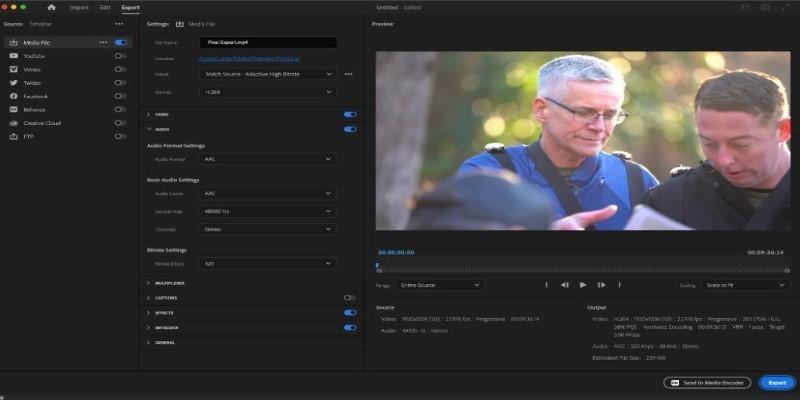
- Choose the export format and quality (e.g., 720p or 1080p) based on where you intend to use the slideshow (e.g., social media, presentations, etc.).
- Save the file to your computer, and you’re done!
Use MP4 format for better compatibility with devices and platforms.
Best Practices for Creating Engaging Slideshows
- Keep It Short: Limit the duration to 2–5 minutes to hold viewers’ attention.
- Use High-Quality Photos: Blurry or pixelated images can detract from the overall experience.
- Maintain a Theme: Stick to a consistent color palette or style for a cohesive look.
- Include Captions: Add short text overlays or captions to provide context to your images.
- Test on Different Devices: Before presenting or sharing, check how your slideshow looks on various devices to ensure proper resolution.
Alternatives to Picasa for Photo Slideshows
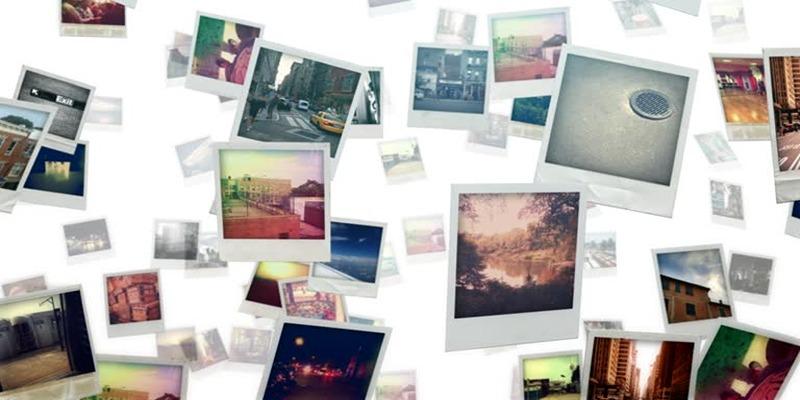
While Picasa is an excellent tool, other software options can also help you create photo slideshows.
- Google PhotosGoogle Photos (Free): Google Photos is the successor to Picasa and offers many of the same features for creating slideshows. It also has automatic organization and unlimited storage for photos up to 16 megapixels.
- Adobe Spark (Free and Paid Options): Adobe Spark offers a variety of templates and customization options for creating photo slideshows. The free version includes basic features, while the paid version offers more advanced options.
- Animoto (Paid): Animoto specializes in creating professional-looking videos from photos and video clips. Its user-friendly interface makes it easy to create impressive slideshows with music, text overlays, and other effects.
Conclusion
Creating a photo slideshow doesn’t have to be overwhelming or time-consuming. With Picasa, you have all the tools you need to craft a memorable slideshow that showcases your favorite moments beautifully. Why wait? Dust off those photos taking up space on your computer and bring them to life with Picasa’s easy-to-use slideshow feature. Give it a shot today and see how it transforms the way you share memories.