Looping a video means making it play over and over again without stopping. Simple idea, but surprisingly useful. Maybe you're making a GIF-style clip for social media, a silent backdrop for a display screen, or a seamless background for a website. It comes in handy in many places. The good news is that looping a video isn't hard. It depends on what you want to do with it and where you plan to use it. You don't need a full film studio or a technical background. You just need the right tool.
There are several ways to do it, ranging from mobile apps to desktop programs to browser tools. Each works differently, and some are better suited for certain tasks. Here are a few of the most reliable and easy-to-use ones.
Tools for Looping a Video
Kapwing
Kapwing is a browser-based video editor. You don't need to install anything. Just upload your video, set how many times you want it to loop, and export. It's free for basic use, with limited video length and export quality. There's a paid version if you want cleaner exports and longer loops.
The interface is simple and clutter-free. Once you're in, you can easily trim, resize, and adjust your video. Looping works by duplicating the video timeline, so if you loop it three times, it plays the same clip back-to-back three times in one file.
VLC Media Player
If you just want to play a video on repeat without editing it, VLC does the job. It’s free and works on nearly every operating system. You open your video, hit the loop button (it looks like two arrows in a circle), and it’ll play continuously.

VLC won’t save the video as a looped file. It just plays it that way. This is useful for personal viewing or when using a computer screen to display the video at an event or kiosk.
Adobe Premiere Pro
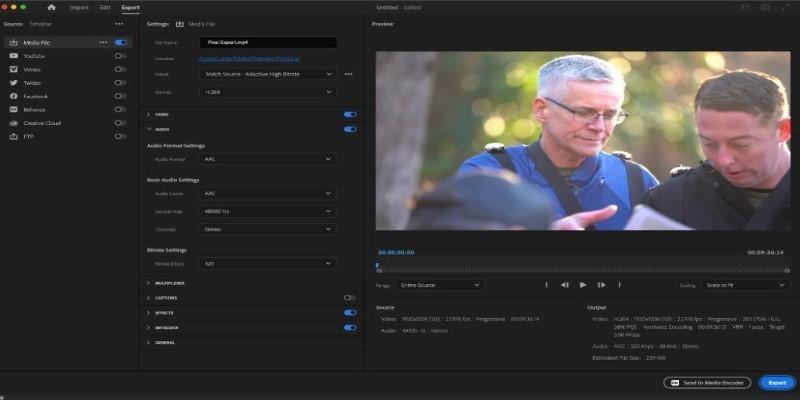
If you already use Adobe products or need full control, Premiere Pro is strong. You can copy and paste clips in the timeline to repeat the video as often as possible. It also gives you the flexibility to adjust audio, transitions, and effects.
It's not cheap, and it has a learning curve. But it's worth it if you're already editing video professionally or frequently. You can export in whatever format you need, set exact durations, and loop with precision.
Canva
Canva isn’t just for posters or Instagram stories. It now includes basic video editing tools. If your video is short, and you’re trying to loop it for a social post or a presentation, Canva makes it very easy.
You just drop your video into a project, copy and paste it as many times as you want, and export. The timeline is drag-and-drop. It's not meant for big video projects but gets the job done quickly.
Clideo
Clideo is another web-based tool that focuses specifically on video tasks like merging, compressing, and looping. It's minimal and purpose-built. You upload a clip, choose how many times to loop it (up to 7 for free), and it merges the clips into one file.
You don’t get much editing control, but it’s good when you just need a quick loop. File sizes are limited in the free version, and watermarks apply unless you pay. Still, it’s fast, and you don’t need an account.
iMovie (Mac and iOS)
For Apple users, iMovie is a built-in option that can do the job. You can drag your clip into the timeline and duplicate it as many times as you need. It’s great for creating simple looped videos, especially if you want to add transitions or background music. It doesn’t offer one-click looping, but it’s easy enough to use once you know your way around the timeline.
EZGIF
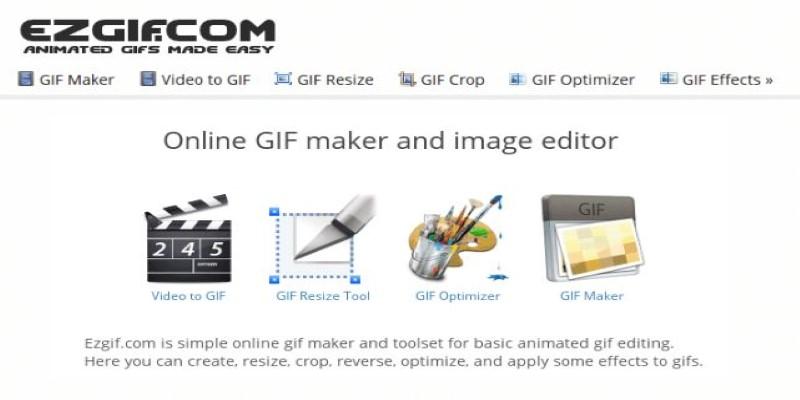
EZGIF is one of the simplest online tools for looping. It was made for GIFs, but it works with videos, too. You can upload your file, choose how many times you want to repeat it, and then either download it as a video or convert it to a GIF. The interface looks basic, but it does the job with zero fluff. It's especially useful for looping short clips into GIFs without installing anything.
How To Guide Using Kapwing?
Let’s walk through looping a video using Kapwing since it's one of the easiest and most accessible tools.
Open Kapwing in your browser and go to the video editor. No account is needed to start. Click "Upload" to import your video from your computer or paste a link if it's hosted online.
Once your video is loaded, drag it onto the timeline. If you want it to loop 3 times, duplicate the video layer 3 times on the timeline. Just right-click and choose duplicate, or use the shortcut buttons. Each copy plays right after the last. You can trim the start or end if needed.
When it looks the way you want it to, click "Export Video." Choose your preferred quality and format. If you're using the free version, there might be a small watermark. Once it's processed, download the file.
Your video file is looped and can be uploaded or played anywhere, just like any other clip.
Conclusion
Once you know where to go, looping a video doesn't take much time or effort. Whether you need a professional edit or just a simple repeat, there's a tool that can do it. Kapwing is a great starting point because it works in your browser and doesn't require much from you. VLC is great when you just want to keep watching something repeatedly. Tools like Canva, Clideo, or a full suite like Premiere Pro are ready to help with anything in between.