Sometimes, the only thing standing between you and finishing a project is a file format. You have a MPEG video, but you need it in SWF format. Maybe it's for an older website, a legacy animation, or a tool that doesn't support modern formats. It feels outdated, but the need is real.
The good news is that you don't need a studio setup or any editing expertise. You just need the right tool and a few minutes. Whether you're using Windows, macOS, or even a browser, there are simple ways to get this done. You can convert MPEG to SWF without getting stuck in settings or bloated software.
6 Best Ways to Convert MPEG to SWF Easily
Use Any Video Converter (AVC)
Any Video Converter is one of those programs that does exactly what it promises. It doesn’t take much space, runs fast, and doesn’t require a manual to use. Once you install it on your computer, converting MPEG to SWF is as simple as loading your video, choosing the output format, and pressing convert. You can find the SWF option easily from the dropdown list under video profiles.
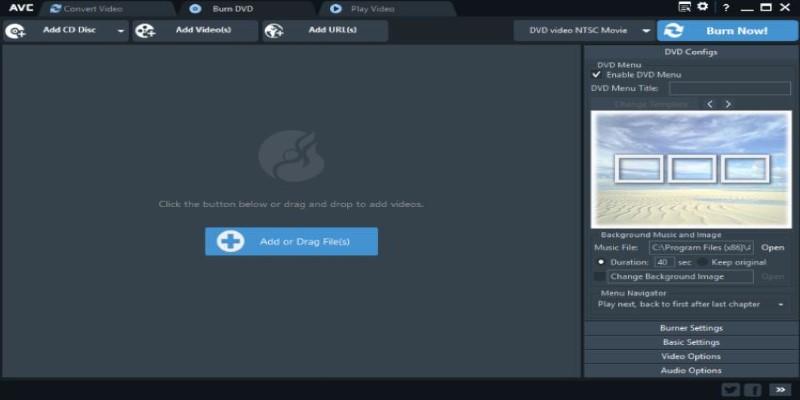
Even if you have multiple files, the batch conversion handles them smoothly. If you want to trim the video, change the resolution, or adjust the audio, those settings are available, but they're not in your face. AVC works well for casual users who just want to get the job done without too many questions.
Online Convert Offers a Quick Browser-Based Option
If you don’t feel like installing anything, Online Convert is a reliable choice. It works from any browser and supports a decent range of file formats, including both MPEG and SWF. You just go to their website, choose the SWF output option, and upload your MPEG file. There’s no registration required, and you don’t need to install plugins or deal with pop-ups.
Once uploaded, you can tweak some optional settings like resolution or bit rate if you want, or just leave everything as-is. Hit convert and wait a moment while the server processes your file. When it’s done, you’ll get a download link. It works well for smaller files, but the free version does have a size limit. If your file is too big, you might need to compress it or switch to a desktop tool.
Format Factory Delivers Speed on Windows
Format Factory is a free Windows-only application that’s been around for years. It’s reliable, works with a wide list of formats, and it’s surprisingly fast. After installation, just open it up and pick “SWF” from the video options. From there, add your MPEG file, set your output folder, and start the conversion. There’s no need to guess what button to click—everything is labeled clearly.
You can reduce file size, change resolution, or trim the video before converting. It’s useful if your SWF file needs to be embedded in a website or application that has strict size limits. Format Factory also repairs some damaged files during the process, which can be helpful if you're working with old or partial MPEGs.
Adobe Media Encoder for Professional-Grade Results
If you already use Adobe tools, Media Encoder can handle MPEG to SWF conversions with professional quality. It’s part of the Creative Cloud suite, and while it’s more complex than most converters, it still makes the conversion process straightforward if you follow the basics. You open the program, drag your MPEG file into the queue, and select SWF as the output format. Press the start button, and Adobe will take care of the rest.
The real advantage here is precision. You can control audio channels, metadata, export settings, and more. If your project needs to meet strict media standards or match other Adobe-produced files, this is the tool to use. Just remember that Adobe no longer supports SWF in modern web development, so this method is best suited for internal tools, archives, or software that still relies on Flash.
Use iWisoft Free Video Converter
iWisoft’s Free Video Converter may look a bit outdated, but it still works well. You download it, open the program, and add your MPEG file. Then, you pick SWF as the output format, adjust anything if needed, and press convert. It supports trimming, cropping, and even merging videos before conversion, which helps if you're dealing with broken clips or want to make a few edits before saving.
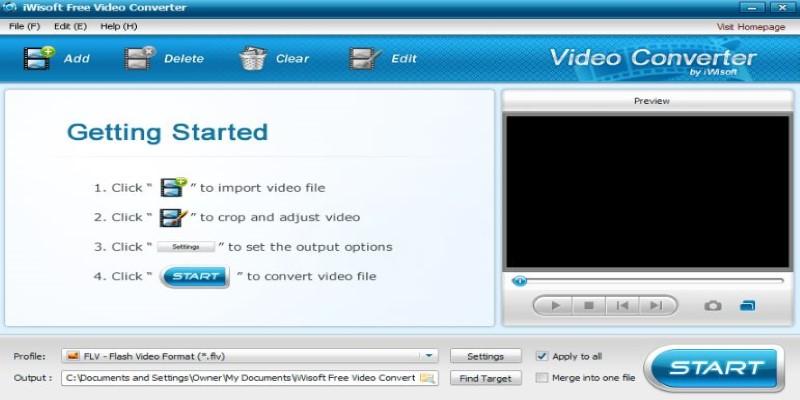 The interface is simple and uncluttered, which makes it easy to understand even if you don’t usually mess with video tools. It doesn't add watermarks, doesn’t limit features, and doesn’t ask you to pay to unlock basic tools. For a no-nonsense MPEG to SWF converter, it holds up well.
FFmpeg for Command Line Users
If you’re comfortable using command-line tools, FFmpeg is your best option. It’s fast, scriptable, and reliable. It works on Windows, macOS, and Linux.
To convert MPEG to SWF, open your terminal or command prompt and type:
ffmpeg -i input.mpeg output.swf
Replace “input.mpeg” with your actual file name. That’s it. FFmpeg will handle the conversion with default settings.
If you want to change the frame rate, resolution, or bitrate, you can add flags like -r 30 or -b:v 1000k. The flexibility here is unmatched, but you need to know what you're doing. It doesn’t come with a visual interface, so it’s not ideal for beginners.
Conclusion
Converting MPEG to SWF is simple if you use the right tool. Whether you prefer installing software or working online, there’s a method that fits your setup. Any Video Converter and Format Factory are great for quick, free desktop use. Online Convert works well in a browser for smaller files. Adobe Media Encoder suits those already using Creative Cloud, and FFmpeg gives full control for command-line users. While SWF isn’t common today, it’s still used in older systems and software training. If you need that format, you can get there in minutes without hassle or technical confusion. Just pick what suits you.